

Learn how to activate Scapia Credit Card online, set your PIN, enable online and contactless payments, and activate international transactions.
Apply for the Scapia Credit Card
Zero Forex Markup on international spends, unlimited domestic lounge access, and Lifetime Free guarantee.
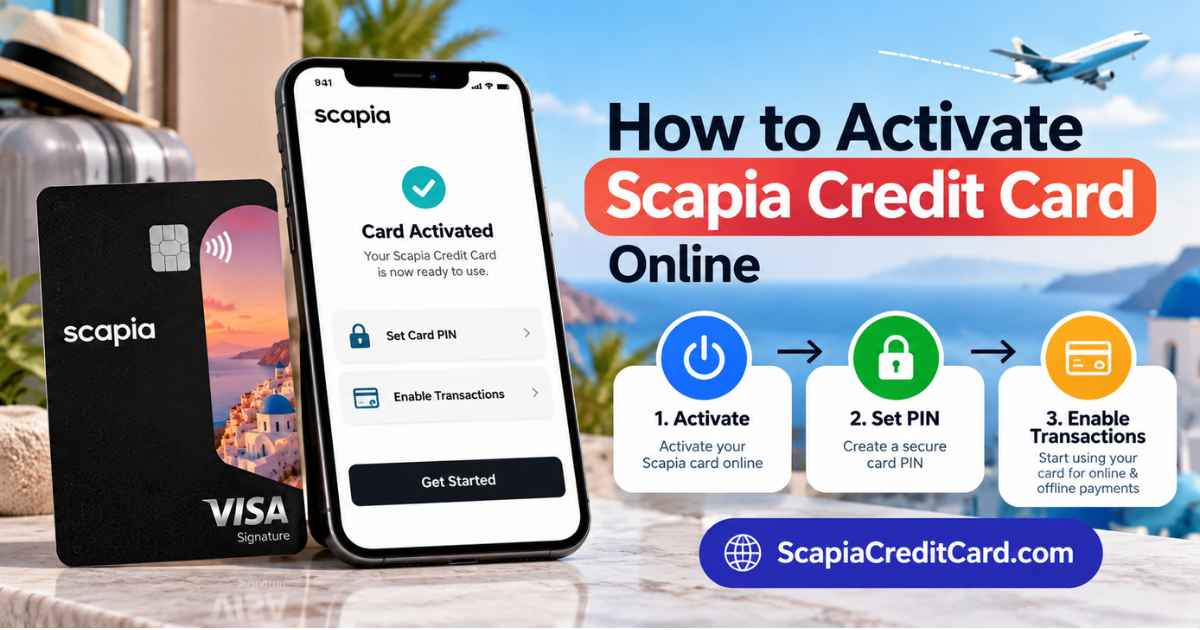
To activate your Scapia Credit Card, use the card-management option provided for your issuing bank, complete the required verification or consent, set your card PIN, and enable the transaction types you want to use. The exact activation screen can differ depending on whether your Scapia card is issued through Federal Bank, BOBCARD, or another banking partner.
If you have applied for the card but have not received it yet, you can first check your Scapia Credit Card application status.
For many cardholders, the important point is that card activation and transaction activation are not always the same thing. Your card may be active while online, contactless, or international transactions remain disabled.
Scapia Credit Card Activation: Quick Answer
If you have just received your Scapia Card, start with these steps:
- Open the applicable Scapia App.
- Sign in using your registered details.
- Complete the required verification or activation consent.
- Set or generate your four-digit card PIN.
- Check your transaction controls.
- Enable online, contactless, or international transactions if you need them.
- Complete a test transaction only after the relevant transaction type has been enabled.
The activation route depends on the bank that issued your Scapia card, so check your card or application details before following issuer-specific instructions.
How to Activate Scapia Credit Card Online
The easiest way to activate a Scapia Credit Card is through the digital card-management facility available for your card. The process is designed to let you activate the card, set the PIN and control the types of transactions you want to allow.
For Federal Bank Scapia Cardholders
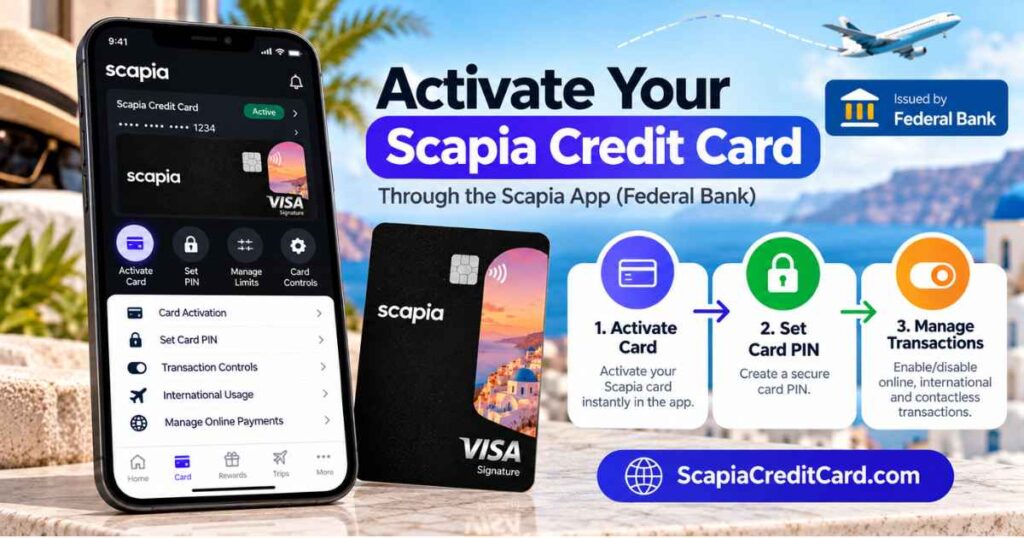
For the Federal Bank version of the Scapia Credit Card, card management is handled through the Scapia application. The card-management functionality includes card activation, bill payments, virtual-card management, transaction controls and PIN setup.
- Open the Scapia app and sign in.
- Open the credit-card or card-management section.
- Select the relevant activation or card-management option.
- Complete any consent, verification or OTP step shown in the app.
- Set your Scapia Credit Card PIN.
- Review the available domestic, online and international transaction controls.
- Enable the transactions you actually plan to use.
The exact labels and screens can change as the app is updated, so follow the options displayed for your particular card.
For BOBCARD Scapia Cardholders
For a BOBCARD-issued Scapia Credit Card, transaction activation is managed through the applicable customer portal. The card terms distinguish between the transactions initially available and the additional transaction types that need to be activated.
- Open the applicable BOBCARD customer portal.
- Sign in using your registered card details.
- Open card-management or transaction-control settings.
- Generate or set your four-digit card PIN if required.
- Enable domestic online or contactless transactions when needed.
- Enable international POS, online, contactless or ATM transactions if you plan to use the card abroad.
- Save the changes and check that the required transaction type is enabled.
Do not assume that enabling one transaction category automatically enables every other category.
For Axis Bank Scapia Cardholders
Axis Bank’s card-control system allows eligible cardholders to manage transaction functionality through Axis Mobile or Internet Banking. The relevant controls include domestic and international usage, along with online and contactless functionality.
- Log in to Axis Mobile or Axis Internet Banking.
- Open the Credit Card section.
- Go to the card control or usage-management area.
- Select the Scapia card.
- Enable the transaction functionality you need.
- Set or review the applicable transaction limits.
- Complete any activation-code or verification step requested by the bank.
The activation code, when required, can be associated with the card documentation supplied by the issuer.
How to Activate Your Scapia Physical Credit Card
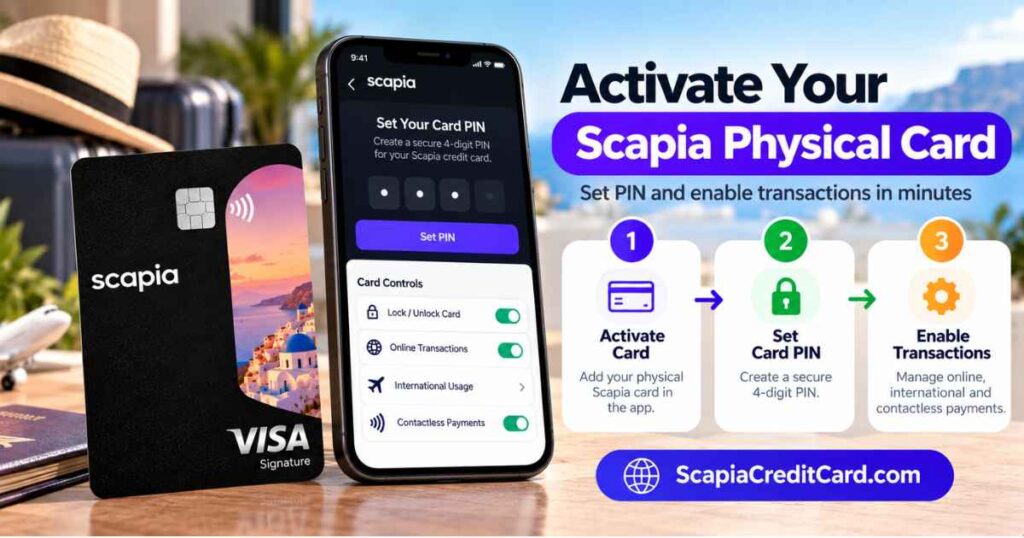
If you are asking how to activate your Scapia physical credit card after delivery, the process starts with your digital card-management channel rather than simply inserting the physical card into an ATM or point-of-sale machine.
After completing activation:
- Set your card PIN.
- Check whether domestic transactions are enabled.
- Enable online payments if you want to shop on websites or apps.
- Enable contactless payments if you want to use tap-to-pay.
- Enable international usage before travelling or making foreign transactions.
A physical card can therefore be delivered to you while some transaction categories still remain disabled until you change the relevant card controls. Once your card is activated, you can also explore the main Scapia Credit Card benefits, including rewards, travel features and airport benefits.
How to Generate or Set Your Scapia Credit Card PIN
Your Scapia Credit Card PIN is used for applicable card transactions, particularly point-of-sale and ATM usage.
To set the PIN:
- Open the relevant Scapia or issuer card-management channel.
- Select the option for Credit Card PIN.
- Complete the requested card verification.
- Enter the required authentication details.
- Create your four-digit PIN.
- Confirm the PIN and keep it confidential.
Never share your card PIN, OTP, CVV or app credentials with another person.
How to Enable Online Transactions on Scapia
If your Scapia Credit Card works at a physical merchant but an online purchase is declined, domestic online usage may not be enabled.
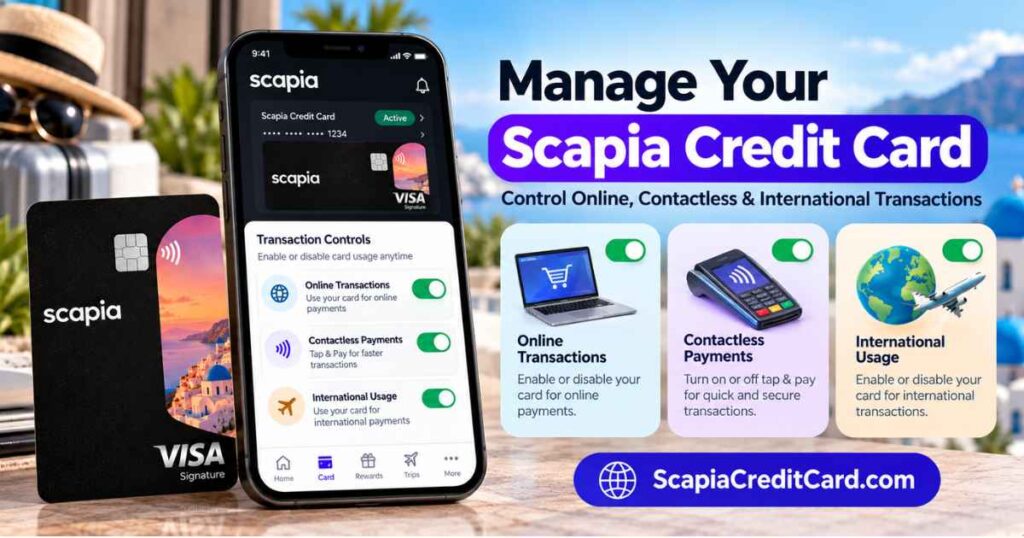
Open your card-management settings and look for the online or e-commerce transaction control. Enable the relevant domestic online usage option and confirm any verification request.
After enabling it, retry the transaction with the correct card number, expiry date and CVV. If you have the RuPay version and want to use your credit limit for eligible UPI payments, see our guide to Scapia Credit Card UPI.
How to Enable Contactless Transactions on Scapia
Contactless payments may have a separate control from ordinary point-of-sale transactions.
If a tap-to-pay transaction is declined:
- Open your card-management settings.
- Find the contactless transaction option.
- Check whether domestic contactless usage is enabled.
- If you are abroad, check the corresponding international contactless setting.
- Save the change and retry the transaction.
Contactless availability and limits can depend on the issuer and the transaction environment, so check the controls shown for your card.
How to Activate Scapia Credit Card for International Transactions
International usage is generally controlled separately from normal domestic card usage.
Before travelling outside India, check the card-management section and enable the international transaction types you actually need.
Depending on your card variant, these can include:
- International point-of-sale transactions
- International online transactions
- International contactless transactions
- International ATM transactions
You do not need to enable every option simply because you are travelling. For example, someone using the card only for hotel bookings and shopping may not need international ATM access.
Also remember that zero forex markup does not mean every international card transaction or cash withdrawal is free. Separate transaction charges, taxes or cash-advance charges can still apply. Before using the card abroad, you can also read our detailed guide to Scapia Credit Card forex to understand how international transactions and forex charges work.
Why Is My Scapia Credit Card Not Working After Activation?
A card can be activated while a particular payment type remains disabled. When a transaction fails, check the specific type of payment first.
Online transaction declined
Check whether domestic online or e-commerce usage is enabled. Also verify your card details, available credit limit and any merchant-side payment restrictions.
Contactless transaction declined
Check the contactless control for the relevant domestic or international transaction type. If it is disabled, enable it through your card-management settings and try again.
International transaction declined
Check whether international usage is enabled for the specific transaction category. An international online purchase and an international ATM withdrawal may be controlled separately.
ATM transaction declined
Check that your PIN has been set correctly and that ATM usage is available on your card. Also check your available credit or cash-withdrawal limit and any restrictions associated with the transaction.
Scapia Credit Card Activation: Important Security Tips
- Never share your PIN or OTP with anyone.
- Use a PIN that is difficult to guess.
- Enable only the transaction categories you actually need.
- Review international controls before travelling.
- Keep your registered mobile number available during verification.
- If the card remains unusable after checking the controls, contact the issuing bank through its official support channel.
Keeping unnecessary transaction types disabled can also reduce the number of payment permissions exposed on a card you rarely use for those transactions.
After activating the card and starting to use it, learn how to manage your Scapia Credit Card bill payment, including available payment methods and due-date information.
Frequently Asked Questions on Scapia Credit Card Activation
-
How do I activate my Scapia Credit Card?
Open the applicable Scapia or issuer card-management channel, complete the required verification or consent, set your card PIN and enable the transaction types you want to use.
-
How do I activate my Scapia Credit Card online?
You can activate the card through the digital card-management facility associated with your issuing bank. The exact steps depend on the Scapia card variant and issuer.
-
How do I activate my Scapia physical credit card?
After receiving the physical card, complete activation through the applicable digital card-management channel, set the PIN and check the transaction controls before using the physical card.
-
Is Scapia Credit Card activation the same as enabling online transactions?
No. Card activation and transaction permissions can be separate controls. Online, contactless and international transactions may need to be enabled individually.
-
How do I activate online transactions on Scapia?
Open your card-management settings and enable domestic online or e-commerce transactions. Complete any verification requested and then retry the payment.
-
How do I activate international transactions on Scapia?
Open your card-management settings and enable the international transaction categories you need, such as international online, POS, contactless or ATM usage.
-
How do I set my Scapia Credit Card PIN?
Use the PIN-management option in the applicable Scapia or issuer card-management channel, complete the required verification and create your four-digit PIN.
-
Why is my Scapia Credit Card not working after activation?
Check whether the specific transaction type is enabled, your PIN is set, sufficient credit is available and the merchant supports the transaction. Online, contactless and international usage can have separate controls.